
MARCOS FIRE CORP · PANELTRAIL
PanelTrail Reports · User manual
User manual · inventory, device lookup and trouble records.
Reference: 8 · 11/09/2026 · Guide 1.0
Download sample session (JSON)
Importing the example replaces the active session. Save your work first.
01 Access and preparation
Sign in at https://app.paneltrail.com/account/ and verify your email with the access code. On your first visit, read the trial conditions and activate your seven days. Open Mapping or Reports. On iPhone, you can add each PWA to the Home Screen from Safari’s Share menu.
Prepare source files while online. Conversion runs on the private server; the session, notes and marked states stay in this browser. Opening the app for the first time also requires a connection.
Change the interface language in the app. Project messages, locations and your own notes remain in their original language.
02 Supported source files
Use Choose file to open the panel program: EST2 or EST3 (.SDU), iO (.SAS), QuickStart (.XDU), or an EST4 project (.zip from 4-CU).
Silent Knight: .SKC from HFSS or SKSS files from the .5820Account, .5808Account, .5700Account and .5208Account families.
Fire-Lite / Notifier: compatible PS-Tools .BIN files. Support for these files does not mean every format or model from those brands is supported.
Available fields depend on the source. Fire-Lite and Silent Knight may not provide serials; keep warnings and confidence indicators for unknown or inferred data.
03 Open and check inventory
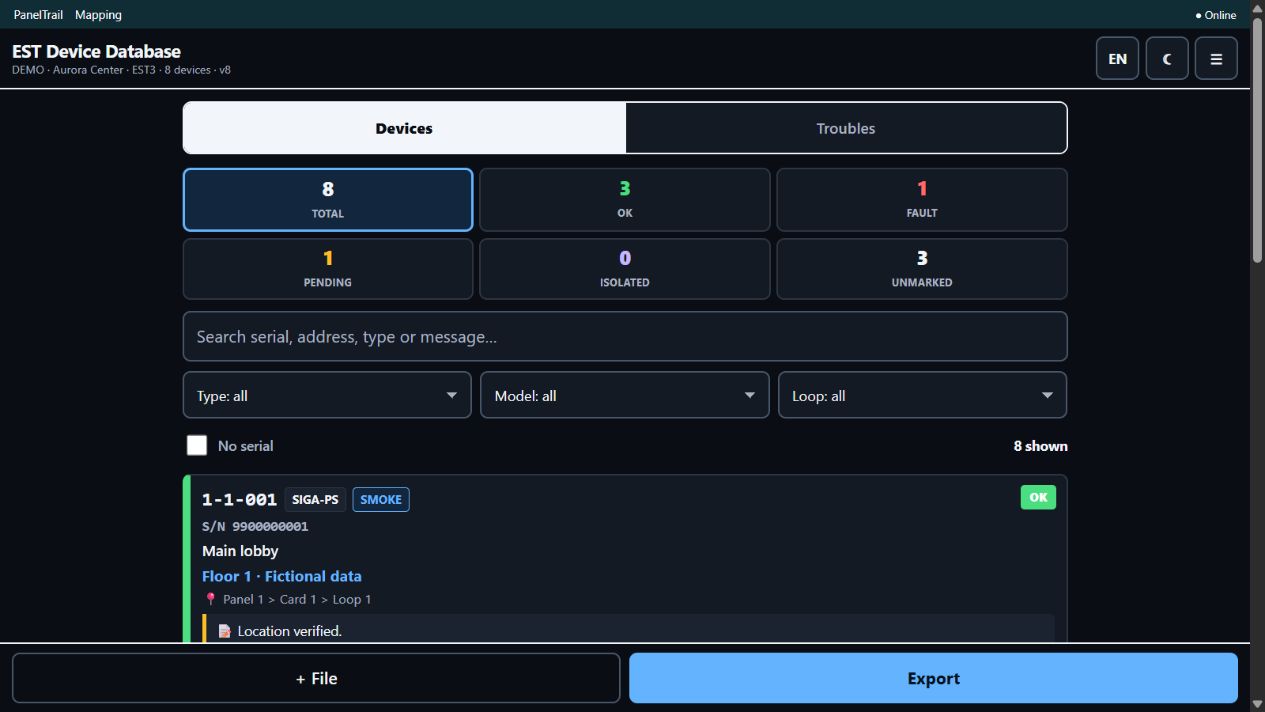
Load the file and wait for preparation. Confirm the project name, family, loops and device count.
In Devices, search by serial, address, type or message. Filter by type, model and loop, or show only devices with No serial.
Open several cards and compare the address, label, model and serial against the source. When loading multiple files, check their provenance before mixing observations.
04 Device state and note
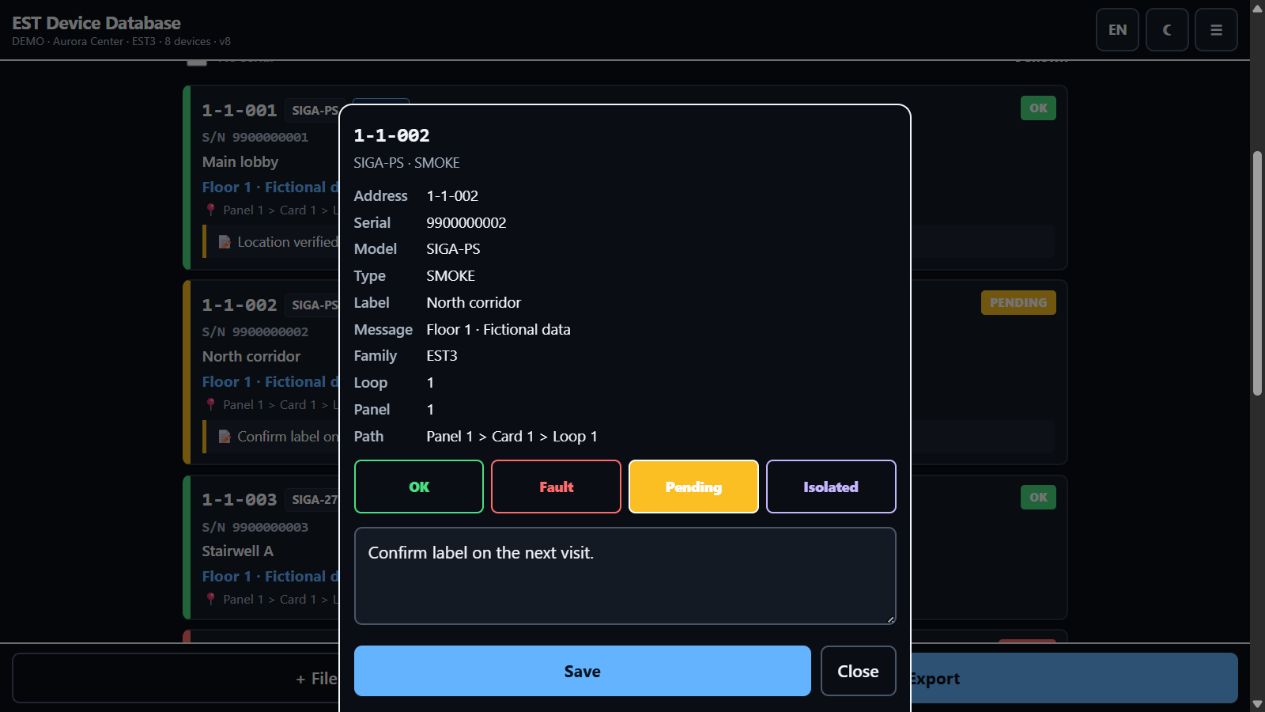
Tap a device card. Its details show the available data and, where applicable, source file, format, confidence and fields requiring review.
Choose OK, Fault, Pending or Isolated, enter your observation and select Save. Close exits the details. Check the note on the card before exporting.
Do not replace an absent serial with an invented one. Add a note describing the missing information and the document to verify.
05 Work with Troubles
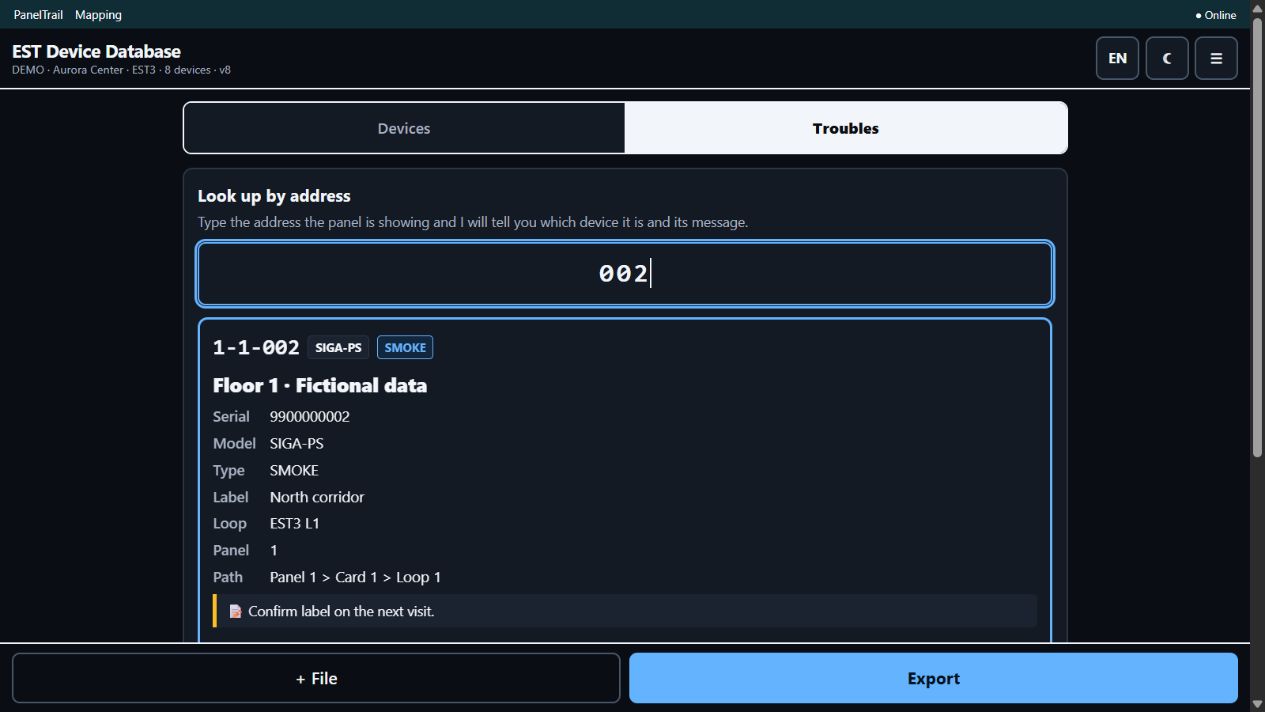
Open Troubles and enter the address shown by the panel. If several candidates appear, verify panel, loop and label before selecting one.
Mark / note opens the device details. + Trouble adds it to the trouble list; a device without a state receives Fault. A device with an existing state keeps it.
Remove takes the device out of the trouble list; it does not erase its note or resolve a field condition.
You can also load a .txt list or paste a panel report. Review matches, candidates and unresolved rows before using the results. Text matching does not replace a technician’s verification.
06 Project, inventory and export
Use Menu > Project details to enter visit information. Job inventory groups devices for reference.
Export provides PDF, Excel and CSV. Check whether you selected all devices, marked devices or the trouble list; review the output before sharing.
Use Save session to keep editable work. JSON and exports belong to this app; do not interchange JSON sessions between Mapping and Reports.
07 Save, restore and reference offline
Before leaving, load your project online, check several devices and export a JSON session from the menu. Keep the file in Files or another location you control.
Reopen the installed PWA and verify the session. Test airplane mode before relying on it in the field. You can reference saved data and work with notes; preparing new source files requires reconnecting.
Restore with Load session in the same PWA that exported it. JSON preserves devices and annotations. PDF, CSV and Excel are reference deliverables, not replacements for a JSON session.
There is no automatic synchronization between devices. Safari, Chrome, a different domain or clearing browser data may have separate or missing local sessions. Export before switching browsers, reinstalling or starting over.
08 Resolve loading or lookup problems
If a file cannot be selected, use the alternative picker on the load screen and confirm it is downloaded on the device.
If a program is not recognized, check its actual format and origin. An arbitrary .BIN is not necessarily a compatible PS-Tools program.
If an address is missing, clear filters and verify panel/loop. Troubles may return several matches; do not choose by the nearest number.
Offline access uses saved data. Preparing another file or renewing access requires a connection. If local storage fails, export the session as soon as possible.
09 Practice with fictional data
Screenshots use DEMO · Aurora Center, eight devices and fictional serials 9900000001–9900000008. They do not represent a real job or validation of every supported format.
Save any current session first. Download the example for this app and use Load session; importing replaces the active session. Search for 0002 in Mapping or 002 in Reports Troubles, open the device and try a note.
OK, Fault, Pending and Isolated are technician annotations. They do not send panel commands, physically isolate devices or certify system operation.