
MARCOS FIRE CORP · PANELTRAIL
PanelTrail Mapping · User manual
User manual · mapping order, serials and field notes.
Reference: 9.5 · 11/09/2026 · Guide 1.0
Download sample session (JSON)
Importing the example replaces the active session. Save your work first.
01 Access and preparation
Sign in at https://app.paneltrail.com/account/ and verify your email with the access code. On your first visit, read the trial conditions and activate your seven days. Open Mapping or Reports. On iPhone, you can add each PWA to the Home Screen from Safari’s Share menu.
Prepare source files while online. Conversion runs on the private server; the session, notes and marked states stay in this browser. Opening the app for the first time also requires a connection.
Change the interface language in the app. Project messages, locations and your own notes remain in their original language.
02 Files by panel family
Use files from the same job, panel and loop. Choose a report by its date and relevance, not the largest number in its name. Export from the original software; renaming an extension does not change a format.
iO: load the SAS. It includes internal mapping, labels and available serials. A current report is optional and updates devices that can be matched unambiguously.
EST2: load the SDU directly or the original Mapping PDF. Add the current serial report. Sections without mapping data are flagged and must not be treated as confirmed connections.
EST3: load the SDU or Mapping PDF. Add the current report to update serials. Loops without saved mapping remain unchained.
EST4: load the Mapping PDF and serial report PDF exported from 4-CU. Use the software’s Export command: printing to PDF may produce a document the reader cannot recognize.
QuickStart (QS): load the reviewed mapping MD and Barcode PDF report. XDU is optional inventory input; it does not create automatic connections.
03 Load and verify
Select + Load and Choose file. You can also paste compatible text and select Process text. Wait for the result before adding another related document.
Check the project name, loops, total and warnings. Compare several addresses and serials against the original documents. A matching row count alone does not establish a correct match.
A partial or older mapping may contain fewer devices than the current report. Preserve differences and warnings; do not fill missing connections by assumption.
04 Understand order and serials
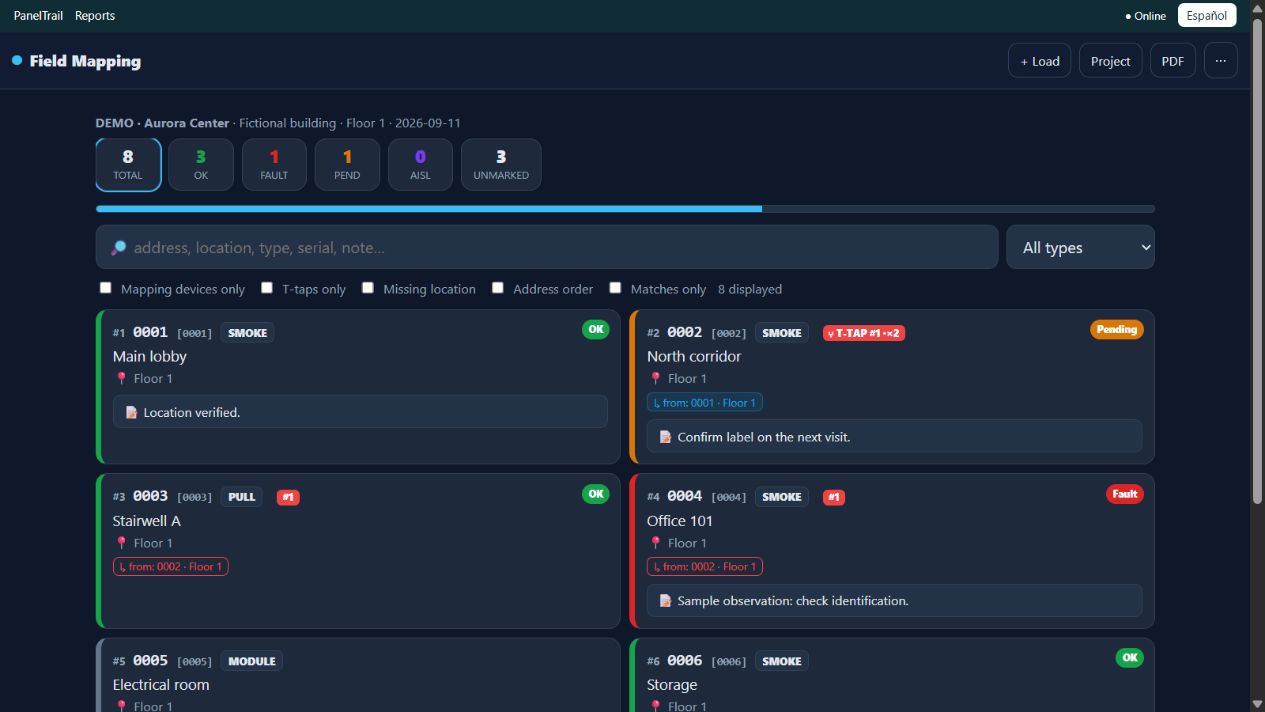
The # number is the mapping position. T-TAP identifies branches and “from” shows the known preceding point. Address and position are different concepts.
A matched current report serial takes priority over the mapping serial. Updates and points found in only one source are identified; ambiguous matches require review.
Keep Address order off when following the mapping sequence. Turning it on changes display order; consecutive addresses do not establish physical wiring.
05 Search, filter and annotate
Search by address, location, type, serial or note. With Matches only off, search highlights results within the route; use the match controls to move through them. Enable it to show only matches.
Combine type or loop filters with Mapping devices only, T-taps only or Missing location. Clear filters first if a point seems absent.
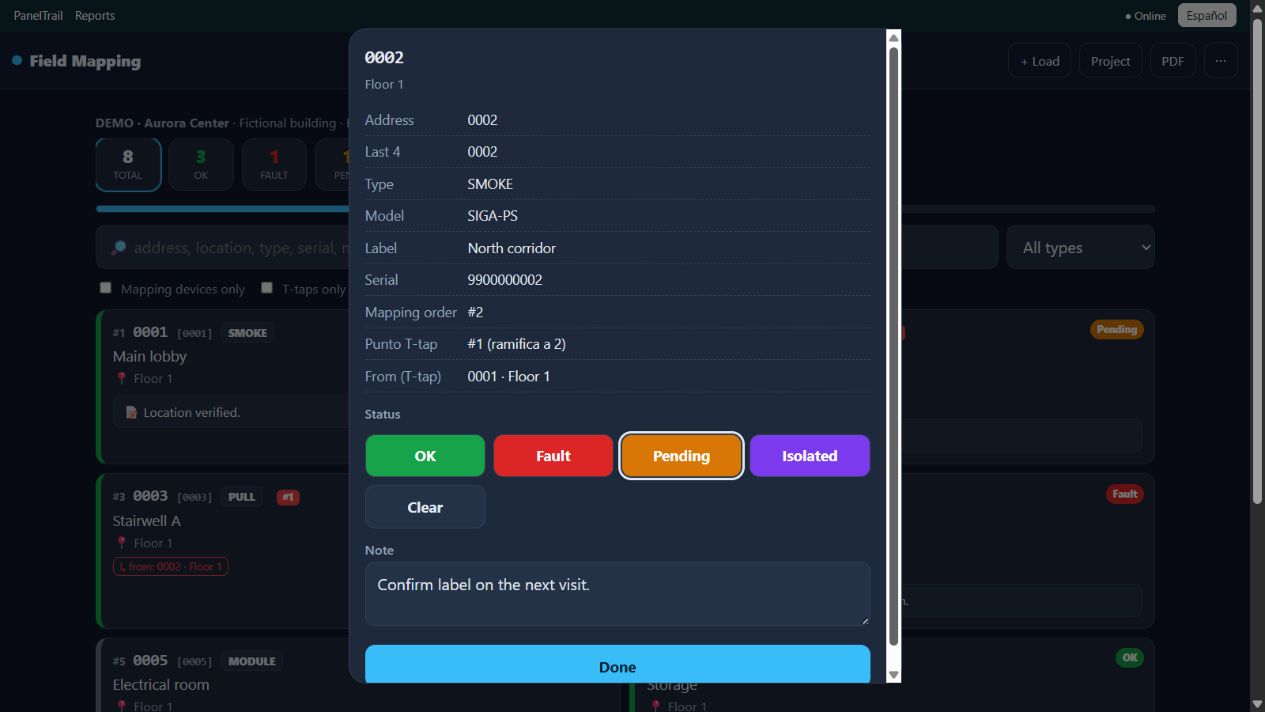
Tap a device card. Check its address, model, serial and source; select a state, enter an observation and choose Done. Notes remain in the local session; export JSON when finished.
06 Project details and deliverables
Use Project to enter the name, site, technician, date and notes. Review these before generating a report.
PDF lets you choose the deliverable scope. Check the active loop and exported total. Sources that provide it also offer MD export to retain organized mapping.
To continue editing later, use the three-dot menu and Save session (file). This backup is distinct from the report PDF.
07 Save, restore and reference offline
Before leaving, load your project online, check several devices and export a JSON session from the menu. Keep the file in Files or another location you control.
Reopen the installed PWA and verify the session. Test airplane mode before relying on it in the field. You can reference saved data and work with notes; preparing new source files requires reconnecting.
Restore with Load session in the same PWA that exported it. JSON preserves devices and annotations. PDF, CSV and Excel are reference deliverables, not replacements for a JSON session.
There is no automatic synchronization between devices. Safari, Chrome, a different domain or clearing browser data may have separate or missing local sessions. Export before switching browsers, reinstalling or starting over.
08 If a file does not load
If SAS or SDU files are greyed out on iPhone, confirm you opened the current version and use Choose file. Make sure the file is downloaded in Files; do not rename it to PDF.
If a PDF is not recognized, export it again from the original software. A printed PDF or scan may not preserve the structure required by the reader.
If access expired, keep a JSON backup, sign in online again and retry. If the server is busy, wait before retrying. Do not repeatedly submit while it is preparing.
If a serial or connection differs, verify the job, panel, loop and date. Keep the warning and compare the source; do not remove the difference to force a match.
09 Practice with fictional data
Screenshots use DEMO · Aurora Center, eight devices and fictional serials 9900000001–9900000008. They do not represent a real job or validation of every supported format.
Save any current session first. Download the example for this app and use Load session; importing replaces the active session. Search for 0002 in Mapping or 002 in Reports Troubles, open the device and try a note.
OK, Fault, Pending and Isolated are technician annotations. They do not send panel commands, physically isolate devices or certify system operation.